

Start with the basics before you call
Remote support is most useful when the problem is described in plain terms. Before you pick up the phone or send a message, note what the machine is doing, when it started and whether it happens every time or only under load. If the issue is a spindle stopping mid cut, a gantry that loses position, or a controller that will not home properly, say that exactly. A short, clear note is better than a long story with missing details.
Start with what changed before the fault began. Did the power go out during a job, was there a software update, did the cutter break, or was the machine moved across the workshop? In many Pretoria and Midrand workshops, the real cause is often a loose connector, a tired cable carrier, or a setting that was altered without meaning to. Pinning the fault down before the call keeps the support session on the real cause.
- Machine model and size
- Control type and software used
- Material being cut
- What the machine was doing when the fault appeared
- Any error message or alarm number
Take photos that show the full picture
Good photos save a lot of time. Start wide, then move in closer. One image should show the whole machine in the workshop so the technician can see cable routing, dust extraction and the surrounding space. Another should show the problem area clearly, such as the spindle, limit switch, control box or screen. If a connector is loose or a cable is damaged, get a sharp close-up. Blurry images make diagnosis harder and can lead to another call later.
Try to take the pictures in good light. If the shop is dark because of load-shedding, use a torch from the side rather than pointing it straight at the camera. This helps show labels, LED indicators and the exact position of switches. A quick video is also helpful when the machine only faults during movement. For example, if a hobby router in Silverton starts vibrating at a certain speed, a short clip of the sound and motion can tell the technician more than ten messages.
- Wide shot of the full setup
- Close-up of the fault area
- Screen photo showing alarms or settings
- Photo of the job file name if software is involved
- Short video if the fault happens while the machine is moving
Keep the settings ready and write them down
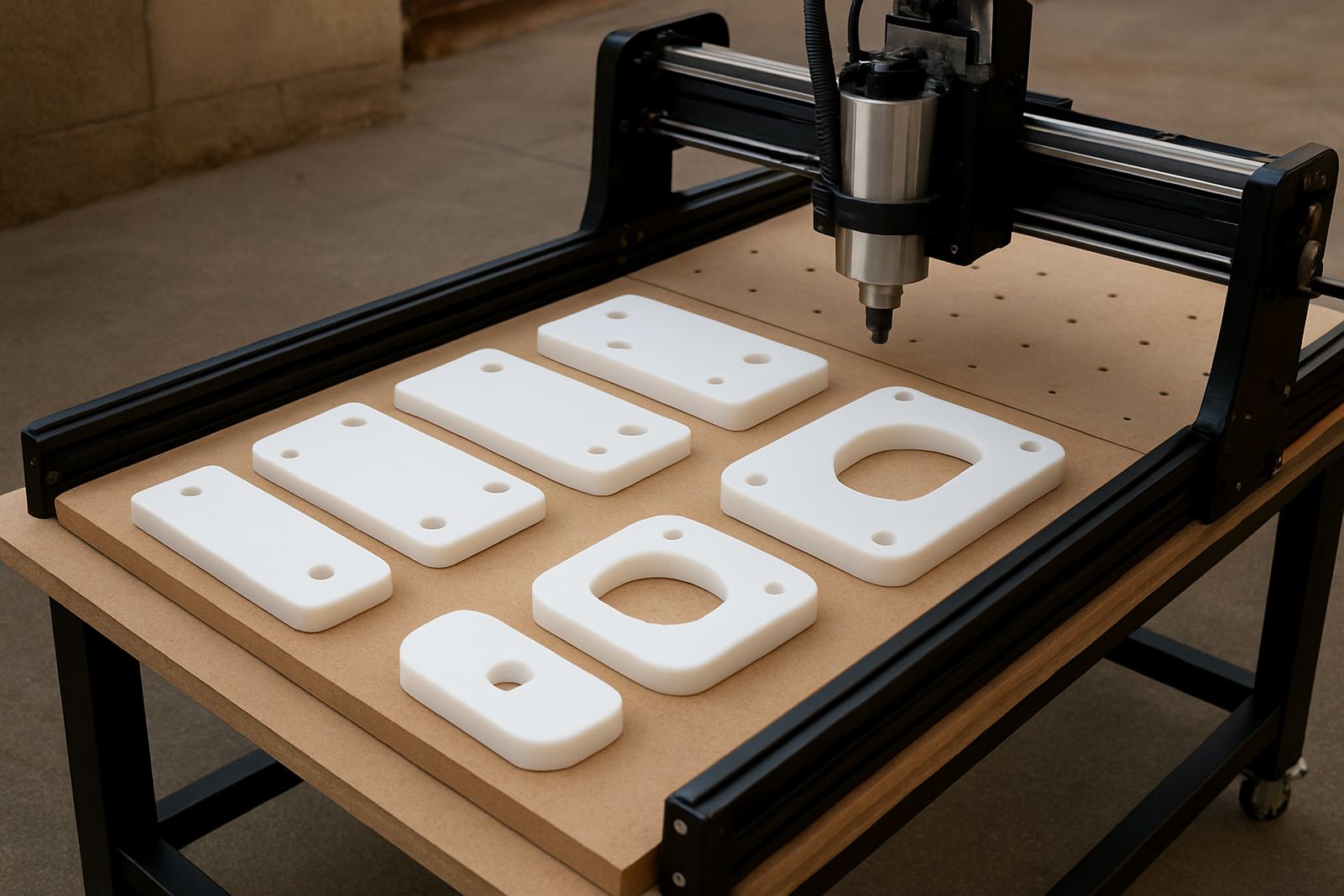
Many CNC faults are linked to settings rather than broken parts. Before remote support, write down the key values from the controller and software. That includes axis steps, feed rates, spindle speed, zero position, tool offsets and any alarm history. If the machine was cutting MDF one day and perspex the next, mention the tools and speeds used. The support team may spot a setting that does not suit the material or the router table size.
Where possible, save a copy of the current setup. If the controller allows backups, make one before changing anything. If you are not sure how to do that, say so and keep the screen open during the call. It is much easier to guide someone through a menu when the current values are visible. A small notebook near the machine can be a proper lifesaver, especially in smaller shops where more than one person uses the same setup. It also stops the common problem of someone saying, “it was working yesterday,” with no record of what changed.
- Axis travel and home position values
- Spindle or router speed settings
- Tool diameter and offset details
- Feed and plunge rates
- Any recent changes made by staff
Describe the fault with time, place and pattern
Remote support gets better results when the fault is tied to a pattern. Explain whether it happens at startup, after ten minutes of cutting, only on long jobs, or only when the machine is cutting one side of the table. If the issue appears after a power outage in Centurion or after a voltage dip in Kempton Park, say that. Electrical clues matter because they point to control problems, loose terminals or protection settings that need attention.
Be clear about what the machine does not do. If the spindle still runs but the axes will not move, that is different from a machine that moves but does not cut at the correct depth. Mention whether there is smoke, smell, unusual noise, excessive heat, or a breaker that trips. Exact detail lets the technician rule things out one by one. In some cases, a fault that seems serious is just a limit switch needing adjustment or a cable with wear at the bend point.
For best results, note the following before the call:
- Time the fault first appeared
- How often it happens
- Exact step where the machine stops
- Noise, smell or heat changes
- Whether power interruption was involved
Prepare the workspace so the call can be useful
Remote support is not only about the machine. The workshop around it matters too. Clear enough space around the router table so the camera can show the control box, cable track and front edge. Make sure the emergency stop can be reached and that someone on site knows how to isolate power if needed. If the machine is in a cramped home workshop or a back room in Pretoria East, move loose offcuts and tools out the way before the call starts.
Check that the laptop, phone or tablet you will use has enough battery and a stable signal. If the internet is weak, stand where the camera can still show the machine while the sound is clear. Close any unnecessary software so the screen can be shared without confusion. It may sound small, but a clean setup saves time and helps the technician focus on the fault instead of waiting for someone to hunt for a charger or another cable.
Before the support session begins, have these items nearby:
- Power isolation point identified
- Basic tools if a panel must be opened
- Notebook for instructions and settings
- Machine manuals or wiring notes if available
- Spare fuses, cutters or cables if relevant
Use the call well and test before you end it
Once the support session begins, answer the questions directly and avoid changing settings unless asked to do so. If you are unsure, say so. It is better to stop and check than to guess. When a setting is changed, write it down. If a connector is reseated, test the machine slowly first. A cautious test is better than throwing the job back into full speed and causing more trouble.
After the fix, run a short sample cut or movement test and watch it closely. Check the same condition that caused the fault in the first place. If the machine only failed on a long toolpath, repeat a shorter version of that path. In a Silverton workshop making MDF panels for a local cabinet installer, that final test might be the difference between finishing a delivery on time and losing half a day later. If the problem is not fully solved, say that before ending the session so the next step can be planned properly.
A simple routine that saves time next time
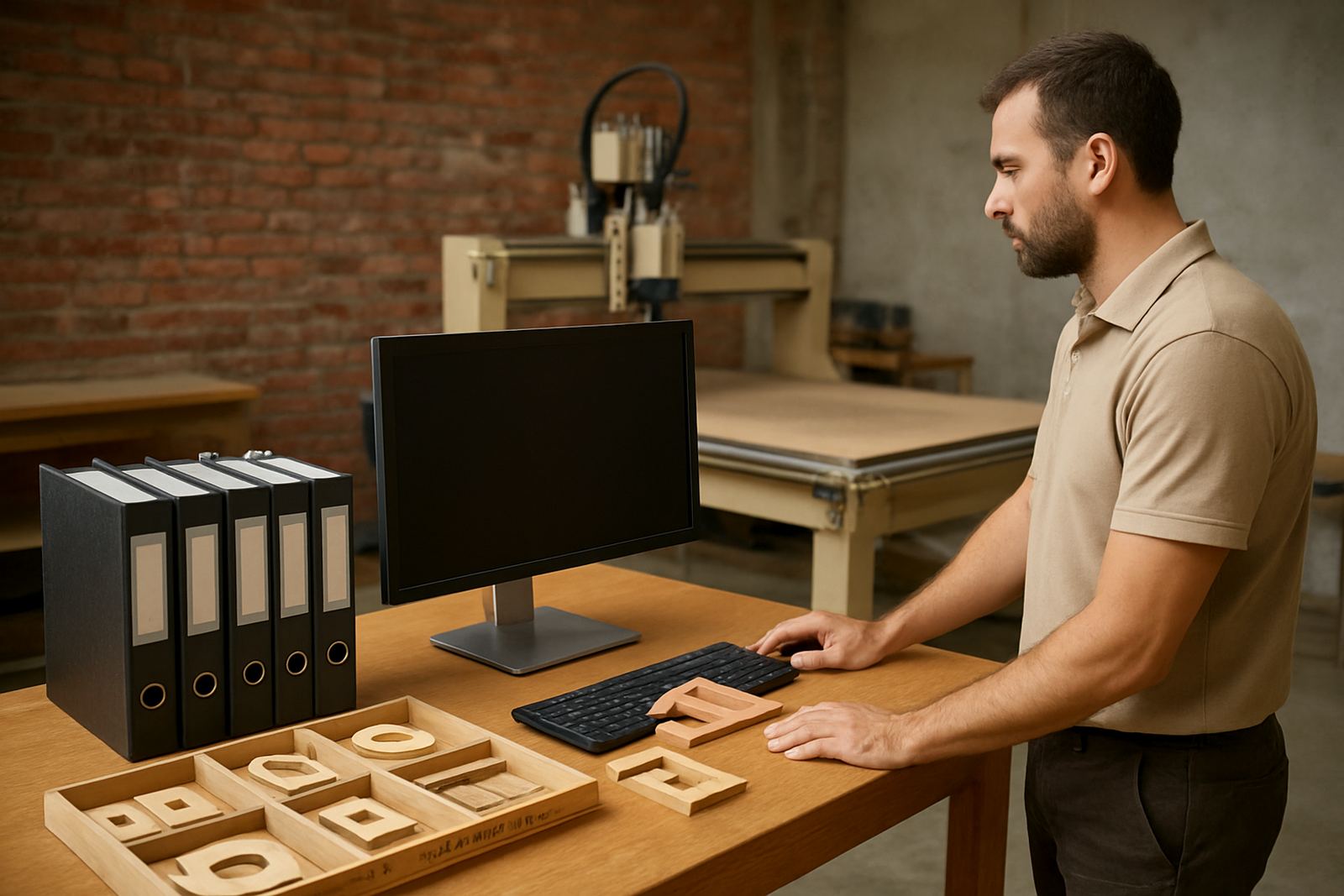
Remote support gets easier when the workshop keeps a small fault file for each machine. It does not need to be fancy. A page with the machine model, controller settings, spares used, common errors and service dates can make a big difference. Add photos of the cable routing, spindle area and control box while the machine is still healthy. When a fault does appear, the support team already has a reference point. That means less guesswork and quicker decisions.
For many South African users, especially smaller shops balancing production with power cuts and tight delivery dates, this routine is worth keeping. A little preparation before the call often avoids a second visit, a wasted afternoon or an unnecessary part order. If the information is ready, remote support can do what it should do, which is get the machine back into work with less delay and less stress.